Tom's Docker Setup: Simple, Clean, and Easy to Back Up

The guide I used for installing docker on Debian 13 Trixie

Here is the DNS fix I used to fix container that were having DNS issues since I moved to Debian 13.

Create or edit /etc/docker/daemon.json

{
"dns": ["8.8.8.8", "8.8.4.4"]
}

The services I have running

13FT Ladder
It pretends to be GoogleBot (Google’s web crawler) and gets the same content that google will get. Google gets the whole page so that the content of the article can be indexed properly and this takes advantage of that.
https://hub.docker.com/r/wasimaster/13ft

CyberChef
CyberChef is the Cyber Swiss Army Knife web app for encryption, encoding, compression and data analysis.
https://hub.docker.com/r/mpepping/cyberchef

Dozzle
Simple Container Monitoring and Logging

FreshRSS
Open Source RSS

Apache Guacamole
a clientless remote desktop gateway. It supports standard protocols like VNC, RDP, and SSH.

Homarr
A sleek, modern dashboard that puts all of your apps and services

IT Tools
Collection of handy online tools for developers, with great UX as a web app.
https://hub.docker.com/r/corentinth/it-tools

Jellyfin
Jellyfin is the volunteer-built media solution that puts you in control of your media. Stream to any device from your own server, with no strings attached. Your media, your server, your way.

NetAlertX
Discover and visualize all your networks

Netbird
NetBird combines a WireGuard®-based overlay network with Zero Trust Network Access, providing a unified open source platform for reliable and secure connectivity

Netdata
Real Time Infrastructure Monitoring
Nginx Proxy Manager
Reverse Proxy
Open Speed Test
OpeedTest by OpenSpeedTest™ is a Free and Open-Source HTML5 Network Performance Estimation Tool

https://hub.docker.com/r/openspeedtest/latest

Open Web UI
Open WebUI is an extensible, self-hosted AI interface

Rust Desk
Open-Source Remote Access and Support Software

WUD (aka What’s up Docker?)
Let’s you know what docker containers need to be updated

4 Likes

@LTS_Tom Regarding starting Jellyfin twice, add a dependency to your docker service.

Make sure your network is online (not needed as remote-fs-target covers this), here for completeness:

[Unit]
Wants=network-online.target
After=network-online.target

Wait for remote shares to be mounted before starting docker (and Jellyfin):

[Unit]
After=remote-fs.target
Requires=remote-fs.target 
1 Like

And don’t forget to define “_netdev” in /etc/fstab too.

@LTS_Tom At the end of the video you mention about accessing services on the same Docker host and it’s fine as long as they have different ports.

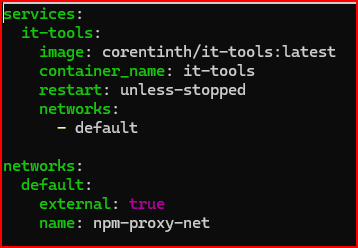
While this works fine, there’s an alternative way where you don’t expose the services via the host at all but place all them on a Docker network. Then when referring to them in NPM you just use the container name.

Like this, just make sure to create the Docker network first. (Not forgetting to expose NPM ports too)

image

I’m just not sure about the security implications of having all the services in one Docker network though, like if it inadvertently exposes stuff it’s not supposed to. Do you know?

1 Like

For security, if you have a docker container that is being controller by a threat actor they would then have to know there are services on that same network and then find a way to exploit those services or maybe find a way to sniff the traffic on them which is a possible but not probable concern.

@LTS_Tom, I noticed you didn’t mention Portainer? Not a fan or do you just prefer to work from the command line?

I did do some testing with Portainer and I found it helpful for understanding the networking side better, but overall I prefer the building compose from the command line.

1 Like

@LTS_Tom How did you set up your bind mounts on the VM? Did you use an NFS share? I have not worked with bind mounts and the way you have this set up for simplicity is very nice.

Yes, NFS shares. I have this video on using it for Ollama

1 Like

Moving this post from the other thread…how many CPU’s / RAM do you allocate to your Docker host.

Do you find it adequate?

I know this is a bit trivial for the more advanced users but I just put this string together to administer a docker host following Tom’s directory structure and it worked like a charm. Just in case someone (or some LLM) is looking for it later…

for d in */ ; do [ -f "$d/docker-compose.yml" ] && (cd "$d" && sudo docker compose up -d); done
2 Likes

for jellyfin i used following without any issues like starting it twice.

  jellyfin:
    image: jellyfin/jellyfin
    container_name: jellyfin
    restart: 'unless-stopped'
    environment:
      - PUID=1920
      - PGID=1920
      - TZ=$TZ
    volumes:
      - jellyfin:/config
      - media-share:/media
    networks:
      - npm_mng

networks:
  npm_mng:
    external: true
volumes:
  jellyfin:
  media-share:
    driver_opts:
      type: nfs
      o: "addr=k19-p-nas01.home.arpa,rw,soft,nolock"
      device: ":/mnt/dellEMC/media"

this is part of bigger docker-compose - there are other media managment containers such as sonarr and radarr instances

1 Like

I have 8 cores and 4G and it’s actually overkill as it’s mostly idle and used only 2.2G

1 Like

such an awesome guide. Based on what you did here i redid my entire docker deployment in my home lab. Simple, clean and most of all scalable (for my set ups..). I run XCP at home so just simply lifting these folders to another VM i want to spin up at my moms house (yep got XCP over there too) is so fun to do. Why do this? Because i can :slight_smile:

Thanks Tom for showing me the way on this.

1 Like

@LTS_Tom Love the way you present things. I am new to the docker world and for the life of me I can not seem to understand volumes, binds, compose files, storage locations, etc. All the words make sense but what is actually happening isn’t.

Wondering if an even more basic video for Docker would be helpful.

Example, I’ve installed Debian/Ubuntu etc, followed the docker engine installation, now what?

What’s docker compose, how does it work in the environment? etc.

Create a compose file, but what is the compose file, where do you store it, why that directory, are additional permissions needed, what about additional containers, how do they know to restart after reboot or not, etc.

What’s in the compose file, what’s a docker bind mount, volume mount, etc. benefits of each, and where is the persistent data being stored? Do you need to created the folders etc ahead of starting the container? How do permissions work on them.

I think if I understood all of that better I would be able to address my specific situation better.

My specific situation, I started using TrueNAS Apps as it was easier at the time, but keep running into limitations. I decided to move to a single docker VM on XCPng hosts with NFS shares to TrueNAS. I don’t mind resetting up my services but if possible would like to mount the existing data stored in them just using the VM to manage the containers instead of the APPs system. From what I understand I would like to ultimately have a TrueNAS dataset or subdataset for each Container where the persistent data is stored, then the Docker VM is just storing the configurations and running the containers. Then my truenas snapshots can actually recover points in time for each container, and the XCPng backup can restore points in time for the configuration.

I could easily be way off here but as you can tell this is a new world to me.

Thanks!

John

1 Like

I don’t do a lot of 101 videos for common services due to lack of time and often there are lots of 101 videos on those common topics. I focus more on where I see the gap, which is a lack of more practical advanced approaches.

@LTS_Tom Thanks, understand that maybe I’m just too noob in the Linux/Docker world.

Let me see if I understand what is happening in your setup…

The Debian VM that is running all your Docker Containers is running on XCPng with a single disk that is part of your NFS share from TrueNAS. This is the VM OS and storage for your Docker.

In the Docker Compose file when you delete out the Volumes section at the very end and add ./ in the first volumes section in front of the colon you are telling compose this is a BIND mount, which means a local file storage on the host VM, inside the folder you were started from. Not a volume mount which would be used if you were connecting to remote storage. So the structure of the container is EVERYTHING storage data and configuration is being kept in the single folder.

This means that XCPng is handling your complete backup. If you needed to restore a single container you would just use the file/folder level to do that. You also don’t need to set individual folder permissions or file shares in TrueNAS on a per app basis because the container only has access to it’s own directory. Then if you need more storage for a Container you would expand the Disk in XCPng and then inside Debian to make it usable.

Am I understanding all that correctly?

Yes, I do this for simplicity for my Homelab setup. I never really run into any scenarios where i have to restore date from a single docker, but that process would work. Mostly I do this because that one VM is all I need to restore in event of a total system failure. Makes disaster recovery planning much easier when you only have just a few virtual machines to restore to have everything you use daily up and running.