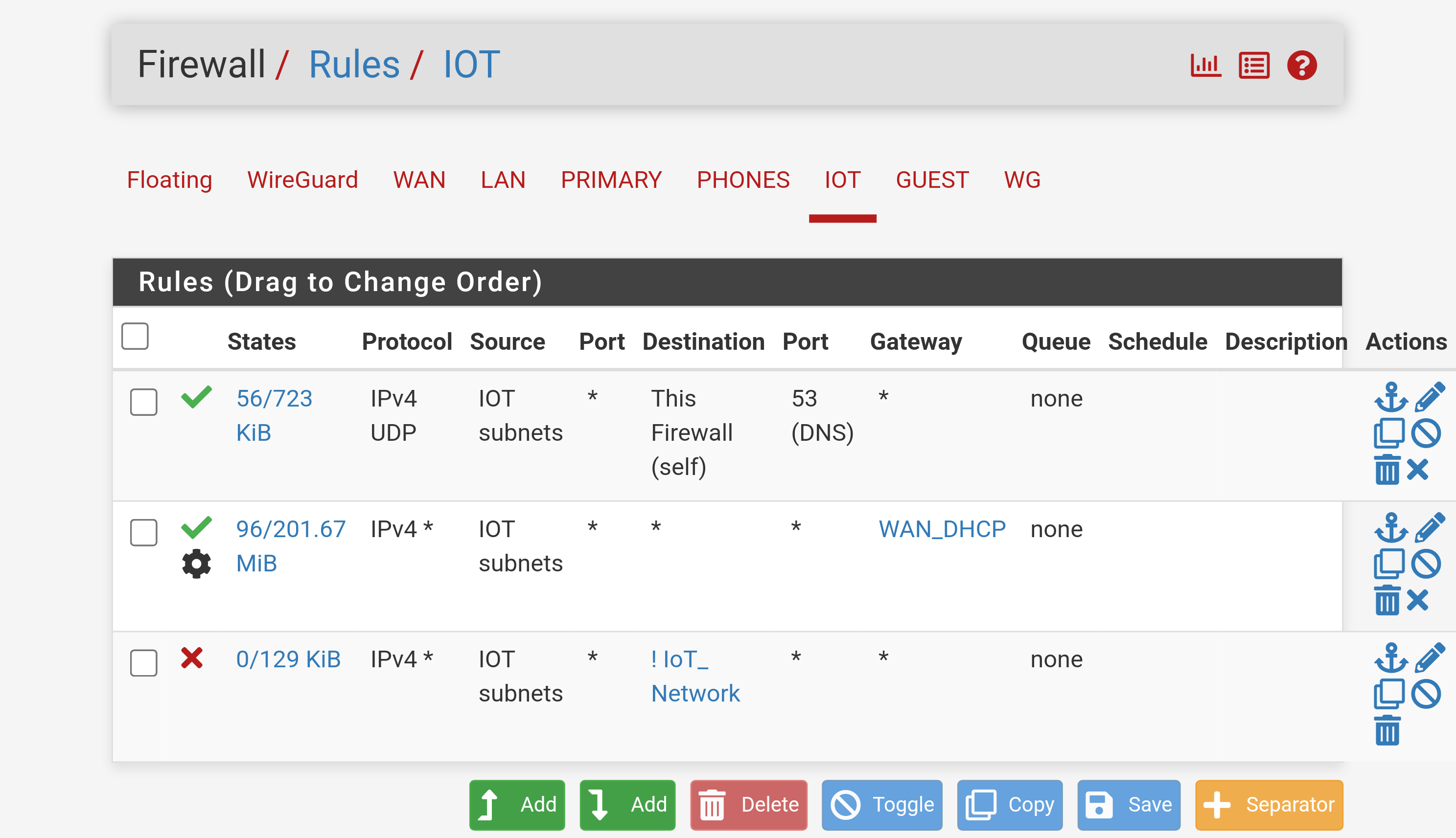
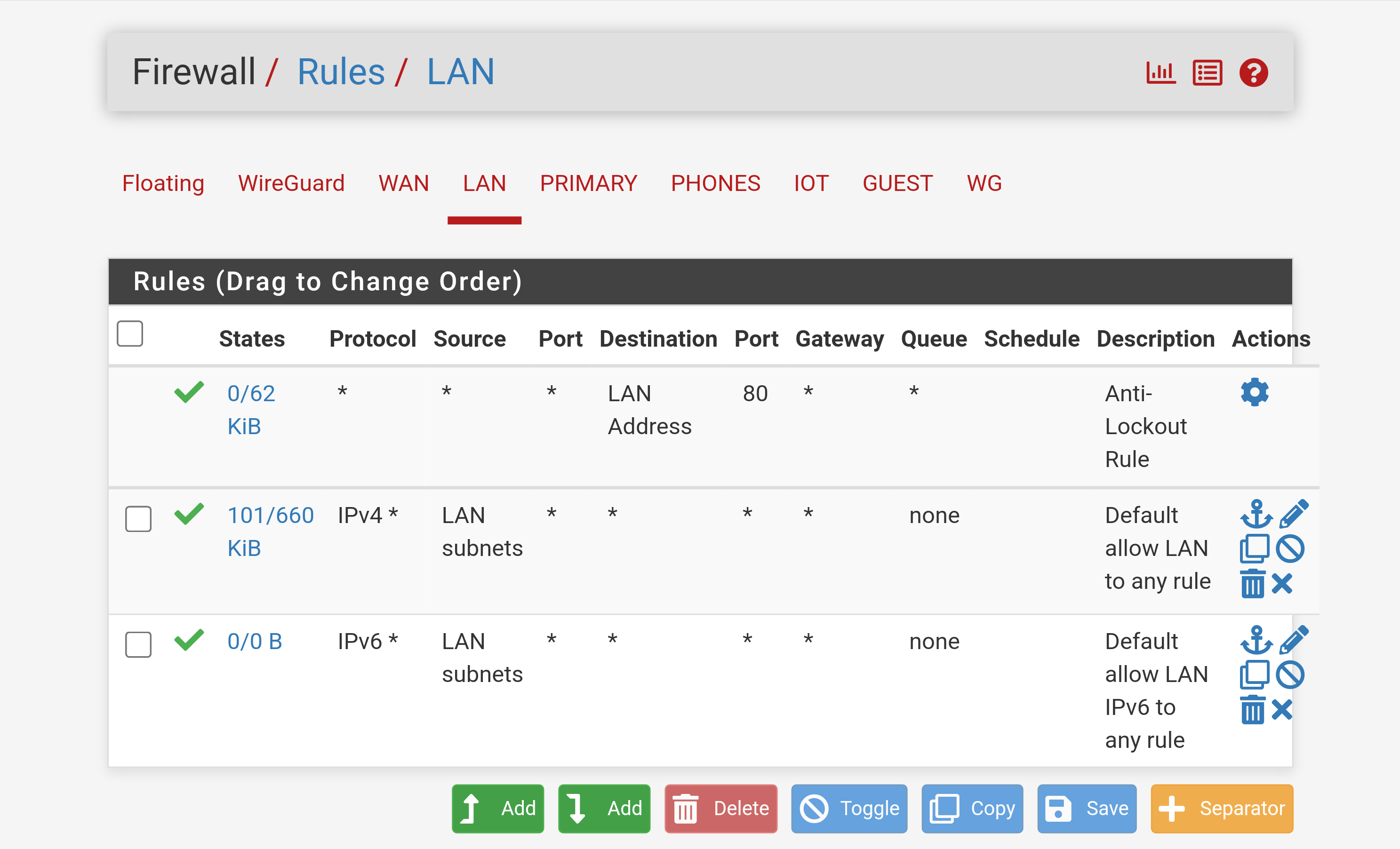
Here’s what my FW Rules look like.
If you can ping 8.8.8.8, from the IOT network, then you have at least basic internet connectivity. If websites fail, the next likely culprit is the DNS server (probably residing in the pfsense VM).
With the laptop connected to the IOT network, you can use nslookup on a windows command line to test the nameserver directly.
- Run ‘nslookup’ on the laptop windows command line. Note the server being used - is it the IP address of the pfsense VM?
- try www.google.com as a DNS query. Do you get something back?
- change the server to an external DNS: ‘server 1.1.1.1’ and retry the www.google.com DNS query.
If step 2 fails but step 3 works, then your local DNS needs some work.
Regarding the gateway - it’s very weird that gateway monitoring is happy but a ‘ping’ from the router to the internet fails. Under ‘Status->Gateways’, check the Gateway address and the monitor address. Are they the same? Try pinging that address from the laptop (both when it’s on the ‘LAN’ network and the ‘IOT’ network).
One more note - there are some weird problems that can crop up when you virtualize pfsense: hardware checksums not behaving and causing intermittent problems. I’m assuming that you’ve made the appropriate changes to the pfsense config for this - it’s covered in the article that @pavlos linked above.
Step 2 & 3 both resulted in "Unknown can’t find www.google.com: Server failed
Yes. They are the same.
I just pinged it from my laptop while connected to the LAN network and it got 4 replies back.
Then I reconnected my laptop to the IoT network and pinged the same IP Address – I got 4 replies back.
I’ll dig deeper into the aforementioned article and see what I can find there.
I just went through all my setting and compared them to what the article calls for. The only difference I see is the CPU Type. It says to use the default flag settings if Type is set to host. Otherwise turn on the Aes flag.
My CPU is set to x84-64-v2-AES. So I turned on the AES flag and rebooted the pfSense VM. When it came back up, I went back to my laptop, confirmed that I’m still connected to the LAN, pinged the gateway IP Address as discussed above, got 4 replies and then tried the nslookup>www.google.com suggestion from above. Once again, that resulted in server failed.
I feel like I’m making progress. The previous test was done with my laptop connected to the LAN network. I just reconnected to IoT and I can actually connect to the Internet again. Within the IoT DHCP Server, the DNS address is set to 1.1.1.1 (per our troubleshooting above) and within the LAN DHCP Server, the DNS address is set to 10.10.0.1 (the address of the DHCP Server for that interface).
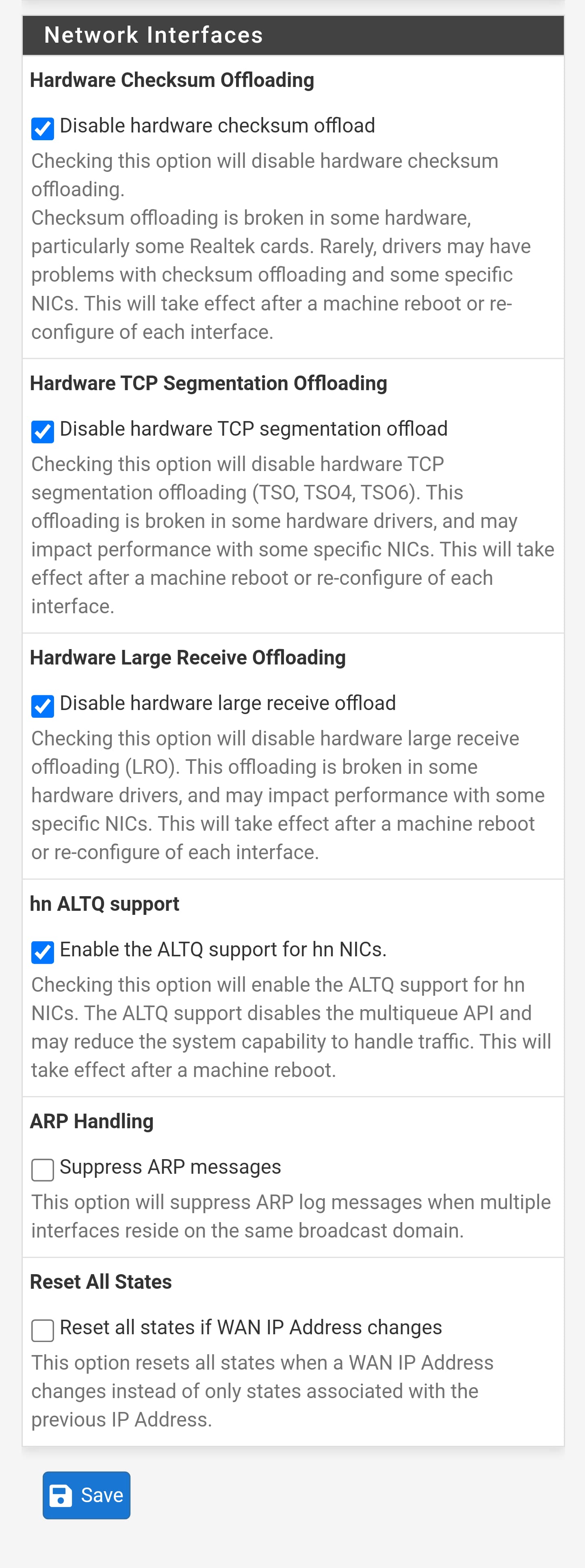
Just to be sure, under the pfsense web interface, in system → advanced → networking
and under the ‘Network Interfaces’ heading:
You have “Disable hardware checksum offload” , “Disable hardware TCP segmentation offload”, and “Disable hardware large receive offload” all are checked?
Since setting the IoT DHCP server to use 1.1.1.1 for its DNS address seemed to work (my laptop was able to visit websites when connected to IoT), I made the same change on the LAN DHCP server. Then I connected my laptop to the LAN. still unable to access websites.
Attempts use nslookup to find www.google.com also fail. 
I’m running out of ideas.
In the pfsense web interface, go to Status->Interfaces and confirm that none of the interfaces have a bunch of errors on them (particularly WAN and LAN). It’s probably a good idea to run ‘ifconfig’ on the proxmox host and also check for excessive errors there.
You may need to start running tcpdump’s both on the pfsense VM (easy, since it’s exposed in the web interface) and on the proxmox host (a little more difficult) to confirm that the data isn’t getting messed up going through the VM. Then trying these pings and nslookup attempts again.
These kinds of problems are what stopped me from trying PFsense in a VM. I’m out of ideas.
Not a single error listed.
I went to the Shell in the ProxMox host. Ifconfig results in “command not found”.
I’m not sure what you mean by that. I’ve never done such a thing.
BTW, there is NO gateway widget in pfsense.
In Interfaces > WAN if you select DHCP, it will get (ip, gw) from your ISP.
If you select static ip, that page will open up for you to provide a gateway.
Since you play with Virtual Machines …
make another VM (pftest2) with just WAN and LAN.
WAN → DHCP, LAN → 10.10.10.1/24
If configured correctly, it works out of the box.
Looks like ifconfig is no longer included in Proxmox. Try ‘ip -s link’ on the proxmox console. That should give link statistics. Hopefully it doesn’t show errors.
tcpdump is a utility that captures network traffic and can display it in a mostly-human-readable format. It allows you to decode the individual packets going through the firewall for everything, including pings and DNS lookups. It’s a ‘next step’ for diagnosing some network problems. However, it’s gets a bit complicated to use.
My Proxmox 8, pveversion says:
pve-manager/8.1.10/4b06efb5db453f29 (running kernel: 6.5.13-5-pve)
ifconfig runs
Good suggestion. Thanks. I spun up a new VM, installed pfSense in it, made sure the WAN NIC Bridge used the same MAC Address as the one the other VM was using for the WAN and when the new VM tried to connect, it got the public IP from my ISP.
Without making any further changes, I was able to access the Internet on my laptop. I guess I’ll configure the new VM with my VLAN info and start over.
Thanks for the assistance guys! Your time and efforts have been appreciated!
I’m ready to consider this issue solved! I was able to rebuild pfSense from the ground up. The only thing left is to get Wireguard working – that was actually what prompted to me to make the switch to Bridge mode in the first place. Packets for the Wireguard port were SOMETIMES getting through to pfSense but the ISP router was sometimes pulling them in and dropping them.
Again thanks for all the assistance.
I know this is 2yrs old but I feel this might be useful. I updated to a new firmware in my modem. After I did I got the same issue as above. Pfsense wan port would not receive an IP address. I even put back the old firmware still same issue. What I found is in wan firewall i had blocked ports 444, 53, and 80. I toggled them off and got an IP address. Not sure witch port caused the problem but I’m back up with new modem firmware. I believe someone in here will know or if it was my issue at all.
Follow up. Found when blocking port 444 it was blocking pfsense from getting an ip address. I read that I needed to create rules to allow port 67 and 68 for DHCP requests. My Problem solved.