We’ve recently moved to signing into Unifi with Microsoft (Entra ID) login. You can follow these instructions here if you’re interested: https://help.ui.com/hc/en-us/articles/30968066908439-Integrating-Microsoft-Entra-with-UniFi-Fabrics
Once Entra ID is set up with Fabrics you can start syncing people/groups and flip the switch on Enforce idP Authentication.
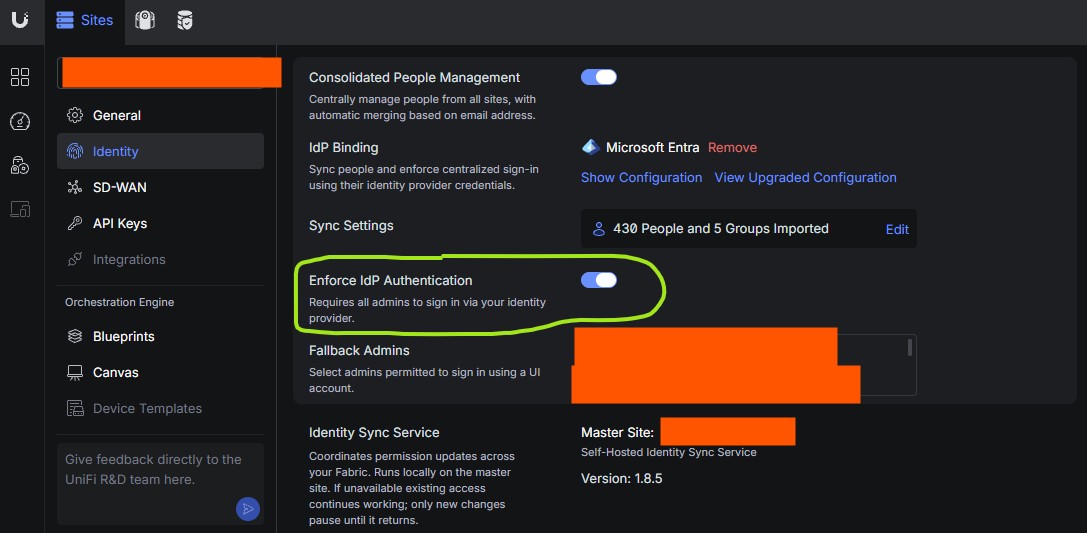
Note: I’ve added a few fallback admin in case Entra ID is down or isn’t working and we need to get into Unifi Admin.
The reason we moved to Entra ID logins is for simplicity of managing users but also to ensure security is met. We have a group of users who we only want to be able to access cameras on campus. We can restrict this via Entra ID Conditional Access.
In Entra ID, navigate to Protection > Conditional Access > Policies and create a new policy:
- Users: Select the specific UniFi Protect users or dedicated user group.
- Target resources: Select the UniFi Enterprise Application.
- Conditions > Locations: Under Include, select Any location. Under Exclude, select your Allowed UniFi Protect IPs Named Location.
- Grant: Select Block access.
Set the policy state to On (or Report-only to test first).
Verification: Attempt to log into UniFi Protect from an unauthorized IP address using a restricted test account and confirm Entra ID blocks the login with a Conditional Access error.
I’ve been testing this setup for the last week and it’s been working well. 