I am in the process of replacing (in a complex mid-size network) an old Forti firewall with an EFG and an old HP fabric L3 core switch with a Hi-Capacity Aggregation switch.
I already have a couple of Pro 48 PoE switches and more than a dozen APs of a few different models (AC Pro, U6 Pro and XG); all of them controlled from a self hosted UniFi OS console on a Debian VM.
In order to do so, I have to migrate my UniFi OS from self hosted to the EFG (since I understand I can’t adopt a cloud gateway from my self hosted installation).
To do this slow and easy, I first connected the WAN port 1 (internet) of the EFG, to an access port in an otherwise unused VLAN on one of the already running switches so it gets connected to the Internet.
I backed up the UniFi OS stand alone and restored it to the EFG so now the EFG knows all the VLANs and all the UniFi devices (though it doesn’t see them yet).
I reconfigure all the VLANs so instead of using “Third-party Gateway”, they point to the EFG, and configure the LAN parameters and DHCP server where necessary.
Then I configure port 6 (SFP28) of the EFG as a TRUNK port carrying most of the VLANs and using as Untagged VLAN (PVID or Native) the VLAN I use for device management and connect the Hi-Capacity Aggregation switch to it using a SFP28 DAC.
The Hi-Capacity Aggregation switch appears for adoption. I click “Adopt” and it never gets adopted. I get a “Device Unreachable” message.
If I enter the text console in the EFG I can ping and ssh to the Hi-Capacity Aggregation (I can’t login since it didn’t set the password yet), so, at least network-wise, the device is reachable.
These are the two screens that are looping while it endlessly tries to adopt the switch:
I am guessing that you are having issues since that switch is not on that management VLAN. With UniFI it works much different than Cisco so I put all the UniFi devices on the native VLAN as it’s not the same security risk it is for Cisco.
I am not using VLAN 1 at all. And it is actually disabled on all TRUNK ports.
I have designated VLAN 4000 as my native VLAN and use VLAN 3 as a management VLAN where I only connect network equipment (which is a mixture of mostly HP and UniFi and a couple of old Cisco switches).
The ports where I connect UniFi switches are TRUNK with PVID=3 and where I connect UniFi APs are restricted TRUNKs (only the VLANs that connect to wifi) and PVID=3.
Every TRUNK port that doesn’t connect to a UniFi device uses PVID=4000.
Yes, been a long while since I did this but I think you can adopt a UniFi device by temp setting the port to your push out VLAN 3 as native → plug in the device to adopt → once adopted and it reboots → set that port back. Then the device should use the management VLAN properly. As i said, I usually setup all the UniFi devices to use VLAN 1 to avoid this issue.
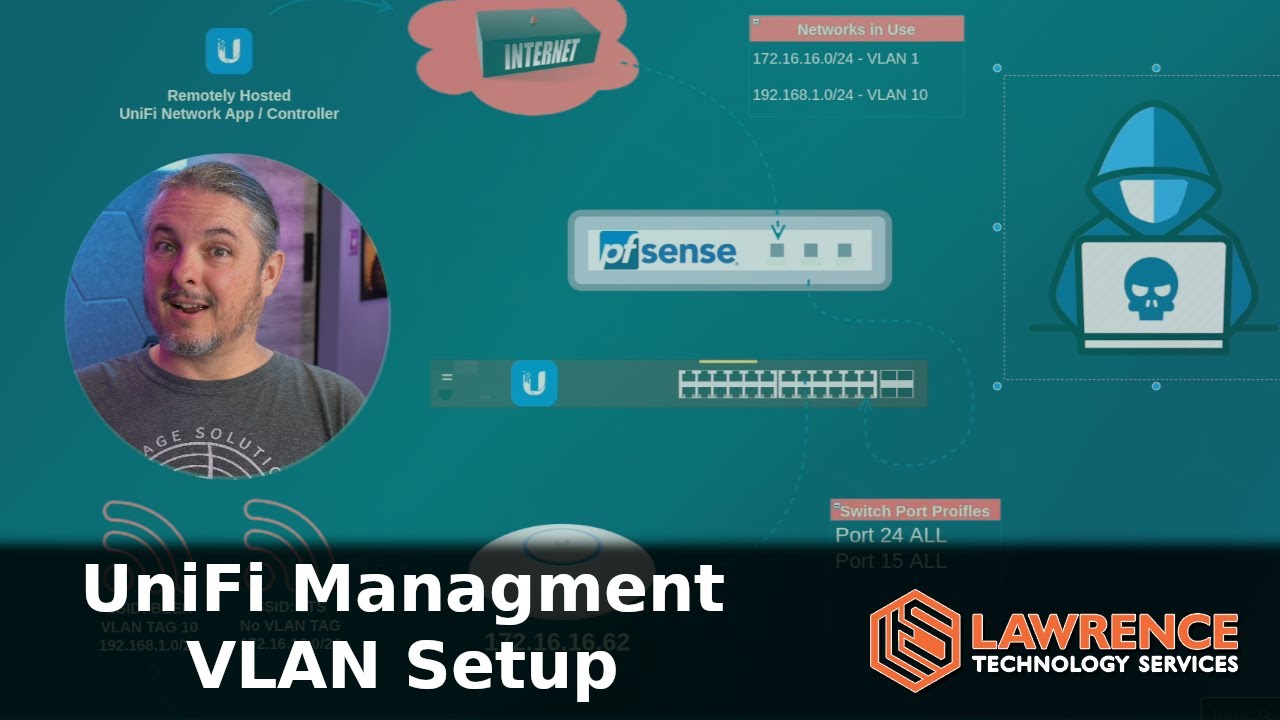
I have a video breaking this down this topic from a few years ago, the concept is still the same but the interface has changed a log over the years so maybe I will make a new one soon.
I understand that using VLAN 1 consciously for UniFi management is reasonable, I am not quite sure about the old HP and Cisco switches, however.
What bugs me is that I never had a problem adopting UniFi APs and switches on VLAN 3 when UniFi console is running on a Debian VM with an interface on that VLAN (different from the one I run the console), but if I run the console inside the EFG (which I must do since I understand I can’t adopt the EFG from the console running in the VM), the same adoption fails (and loops).
Is this a bug in the software or the architecture?
I can eventually migrate all of VLAN 3 to VLAN 1, but I have to modify configurations within the UniFi console and on the old HP and Cisco switches.
For what it’s worth, I don’t use VLAN 1, a lot of people with Unifi do it but I still prefer to avoid it even if the benefits are negligeable.
In this situation, I would basically do what Tom suggested here, just change the port to the VLAN you want as an access port, once the device is adopted you can then static IP it and tell it to use whatever VLAN you want for management. Once you change those settings, adjust the port to be Allow All again and the switch should come back into view.
The message about the IP is because I forgot to enable DHCP on VLAN 1 (remember I don’t use it at all), but nonetheless, since it expects to use 192.168.1.0/24 and the gateway in 192.168.1.1, it seems be working so far.
Got “Click to Resolve” with a message “Connection Interrupted” and had to press the “Remove” button.
Rebooted the USW and got a message saying that the device was adopted by another console (WTF?) and showing me how to do a factory reset.
After the third factory reset I was finally able to adopt the device without errors.
However, after manually changing the IP, after the “Getting Ready”, it shows the new IP address but shows the “Click to Resolve” status and clicking there it says: “Connection Interrupted: Network as lost connectivity with fw-ec-00 Port 6. Review the troubleshooting steps Here.”
Eventually, I was able to make it work. Thanks to @LTS_Tom and @planedrop for your help and suggestions.
I leave here what I had to do step by step:
Configure the port where you connect your new device as access port in VLAN 1 and Allow All for Tagged VLANs.
Factory reset the device
Go to the UniFi Devices list and the device should appear with status “Click to Adopt”. After clicking it should take a while “Adopting”, then “Getting Ready” and finally “Up to date” (it might update the firmware in the middle if necessary).
Select the new device and click on the to configure it.
Change the device name if you want.
Check the Network Override checkbox.
Select the VLAN you want to use in “Virtual Network”.
In IP Configuration select Static.
Configure IP Address, Subnet Mask, Gateway and DNS servers.
Apply Changes
The status should show “Getting Ready” and then “Up to date” again
Now you can reconfigure the port where you connect the device. You can either configure the port or use a Port Profile, in any case the port should have the following:
Native VLAN/Network: the VLAN where you manage your devices (the network that holds the IP address you configured manually above
Either Allow All Tagged VLANs or choose Custom and the VLANs you manually select to allow must include VLAN 1



 to configure it.
 Network Override checkbox.
 Static.